TikTok Shop System Error When Adding Bank Account: How to Fix
Getting a 'System Error' when entering your bank account details on TikTok Shop? Discover why the validation fails and how to update your payout info.
VDTik Editorial
Published on June 23, 2026
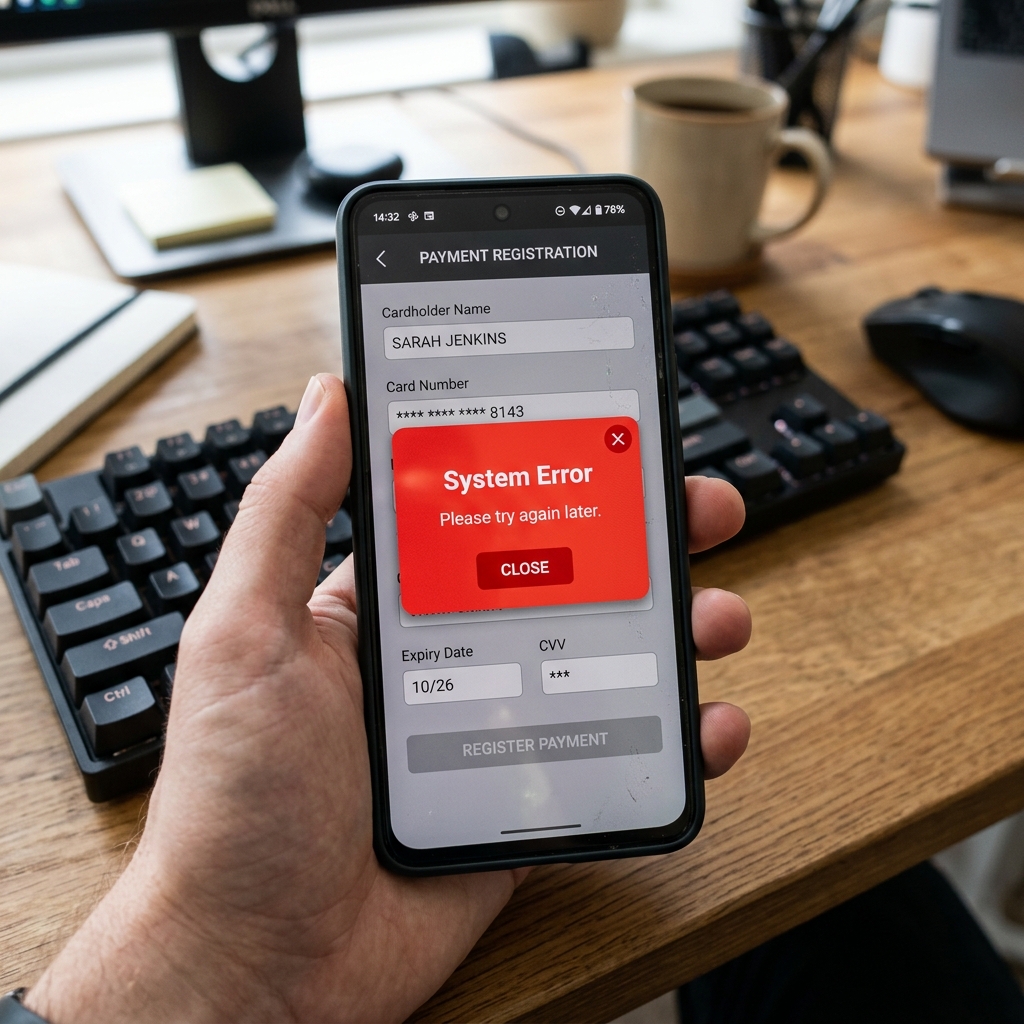
Entering your routing number. Double-checking your bank account digits. Tapping “Save”.
A red pop-up appears: “System error. Please try again later.”
You wait 24 hours, clear your cache, try again, and see the exact same error.
This error blocks new sellers and affiliates from setting up their payouts. It is not a random server crash. It is a validation failure: the billing name, address, or routing number you are entering does not match the database records TikTok queries during the verification process.
Here is why your bank account verification is failing and the steps to bypass the system error.
Why the “System Error” Happens During Setup
When you add a bank account, TikTok’s financial gateway checks your details against the national banking database. The validation fails due to three main mismatches:

1. The Legal Name Discrepancy
This is the most common reason for failure. If your TikTok Shop is registered under an LLC (e.g., “Apex Media LLC”), but your bank account is a personal account under your name (“John Doe”), the validation engine will reject the mismatch. TikTok requires the account name to match your Seller Profile name exactly.
2. The Address Sync Error
The address you enter in the payment profile must match the billing address on file with your bank. If you recently moved or entered your business headquarters address instead of your bank account’s registered billing address, the database sync fails, triggering a generic “System Error.”
3. Digital Bank Routing Incompatibilities
If you use online-only business banks (like Mercury, Wise, or Novo), their routing numbers are often registered differently in the federal databases than traditional banks. TikTok’s payout system sometimes flags these digital banks as “high risk,” blocking their routing numbers automatically.
How to Bypass the System Error and Add Your Bank
If you are locked out by the system error, follow these troubleshooting steps:
1. Use the Web Version of Seller Center
The Seller Center mobile app has strict validation scripts that crash easily.
- Log into Seller Center on a desktop browser.
- Try entering your bank details there.
- Often, the web interface will display the specific validation error (e.g., “Name mismatch”) instead of the generic mobile app “System Error” popup.
2. Verify Your Billing Address Format
Open your latest bank statement. Copy the billing address formatting exactly, down to the capitalization, abbreviations, and ZIP code extension. Input this exact address into the billing section of the TikTok Shop form.
3. Switch to an Alternative Payout Method
If your digital bank routing number continues to trigger system errors, use a traditional checking account (e.g., Chase, Bank of America, Wells Fargo) to establish the initial payout link. Once your store profile is verified and active, you can easily update the bank details in your dashboard later.